

Before you begin
- You’ll need admin access to your Shopify store.
- AppFox works on all Shopify plans — no Shopify Plus or custom theme required.
- No developer help or theme editing is needed at any point in this setup.
Get up and running
1
Install AppFox
Go to the Shopify App Store and search for “AppFox”, or click Install AppFox to open the listing directly. Click Install and confirm the app permissions. That’s it — AppFox is immediately active on your thank-you and order status pages. No theme edits, no snippet placement.
2
Open the AppFox dashboard
After install, click Open app in the confirmation screen, or find AppFox under Apps in your Shopify admin. The dashboard is where you’ll configure everything in the next steps.
3
Choose your edit types
In the dashboard, go to Edit Rules. Toggle on the edit types you want to allow your customers to make:
- Address change — lets customers fix a shipping address before the order ships
- Variant swap — size and color changes on existing line items
- Quantity — increase or decrease the quantity of an item
- Add / Remove items — add a forgotten product or drop one from the order
-
Cancellation — self-service order cancellation within your edit window
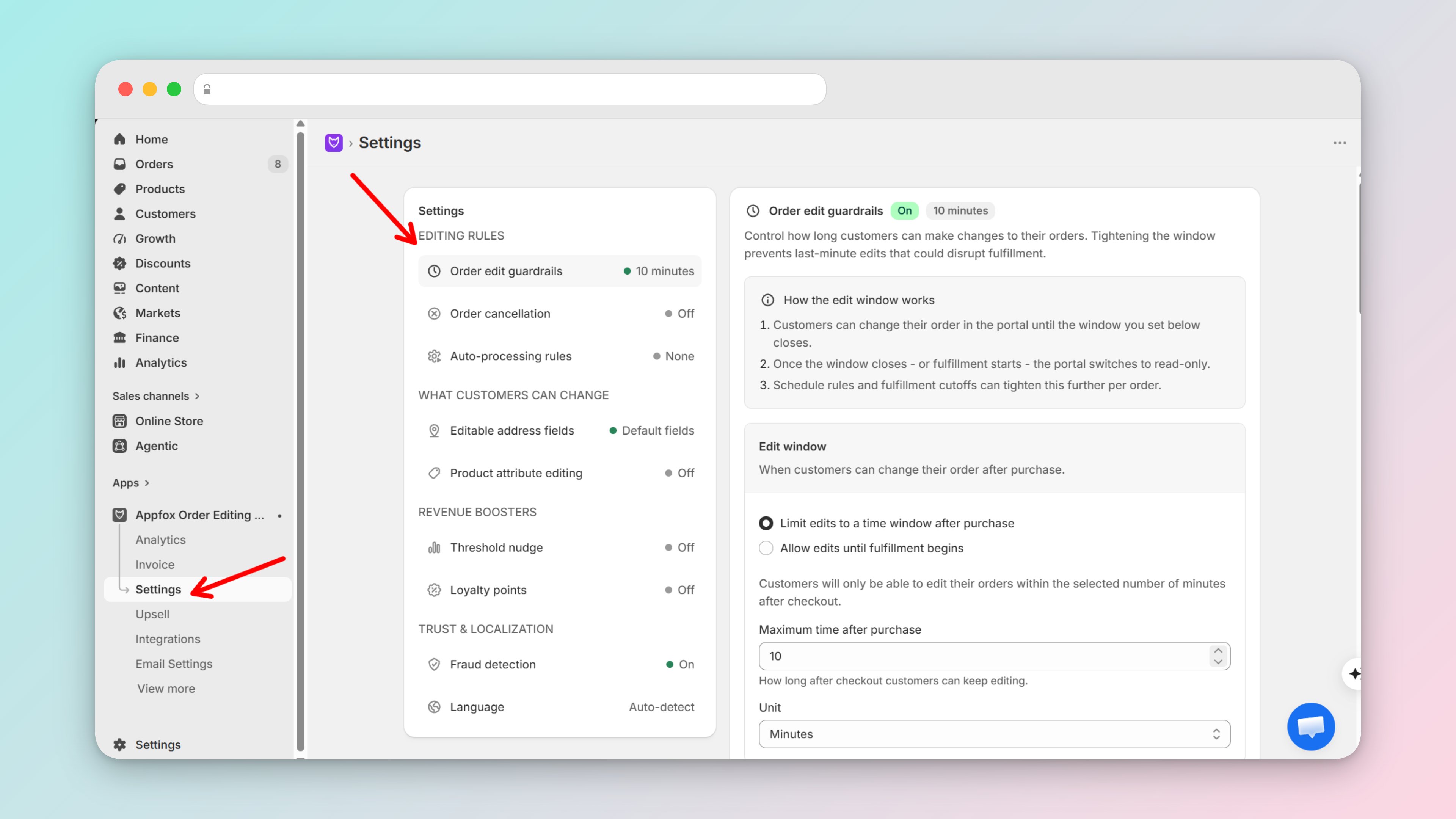
4
Set your edit window
Set how long after order placement customers can make edits — for example, 24 hours or 48 hours. Once that window closes, the editing UI stops appearing for that order.Also set your fulfillment cutoff: when an order ships, editing automatically closes regardless of how much time remains in the edit window. Customers can never race your warehouse.
5
Choose approval mode
For each edit type you’ve enabled, decide whether changes auto-apply immediately or go into your approval queue for review. You configure this per edit type, so you can have different rules for different actions.A sensible starting point: auto-apply address changes and quantity adjustments; send cancellations to the approval queue. You can tighten or loosen these settings at any time.
6
Add your first upsell offer (optional)
Go to Upsells in the dashboard and create an offer. Select the product you want to promote, write a short offer title, and activate it. The offer will appear inside the edit flow immediately — shown to any customer who opens their order to make a change. One click adds the item to their existing order with no second checkout.
7
Test it
Place a test order on your store, open the order confirmation email, and click the order status link. You’ll see the AppFox edit controls live on the page — exactly what your customers will see. Confirm the edit types you enabled are visible and that your edit window is reflected correctly.
What happens next
Once you’re live, any customer who arrives on their thank-you or order status page will see the edit UI automatically. AppFox evaluates each order against your rules before showing anything — only eligible edit types appear, and options that are outside your window or past your fulfillment cutoff are never shown. Customers can’t request what they’re not allowed to do. For edits set to auto-apply, changes settle immediately and the customer receives a confirmation. For edits in your approval queue, you’ll see them in the Approvals section of your dashboard. If you’ve connected Slack, you’ll also receive an alert there so a pending edit never sits unreviewed overnight.Explore further
Order Editing
Configure edit types, windows, and approval rules in detail.
Upsells
Set up post-purchase offers inside the edit flow.
Integrations
Connect Shopify Flow, Gorgias, and Slack to your edit workflow.
Plans & Billing
Compare Free, Growth, and Pro to find the right fit.